
User Journeys & Roles
How each stakeholder of the Astronaut Health Intelligence Platform (AHI) moves through the app to get a job done. Every journey below works in the running prototype with simulated data. Who the stakeholders are and why: Use cases and stakeholders.
Roles are views, not permissions
There is no login. "Roles" here are ways of using the same screen; the Ground view and the Crew view are layouts. Role based access is planned.
Roles at a glance
| Role | Main view | Typical actions | Can act on board |
|---|---|---|---|
| Crew member | Crew view | Read own status, do the top actions, daily check-in | Yes, ONBOARD items |
| Crew medical officer | Ground view or Crew view | Start the onboard assessment protocol, mark actions done, consult Earth | Yes |
| Flight surgeon | Ground view | Investigate, acknowledge alerts, read factors and forecasts, hand over | Through the Earth link (delayed) |
| Mission Control | Ground view, Tools | Cabin, devices, dose planning, mission overview | Cabin actions on board are done by the crew |
| Researcher | Tools > Data and model | Inspect real datasets, provenance and the model card | No |
Journey 1: crew member, morning check
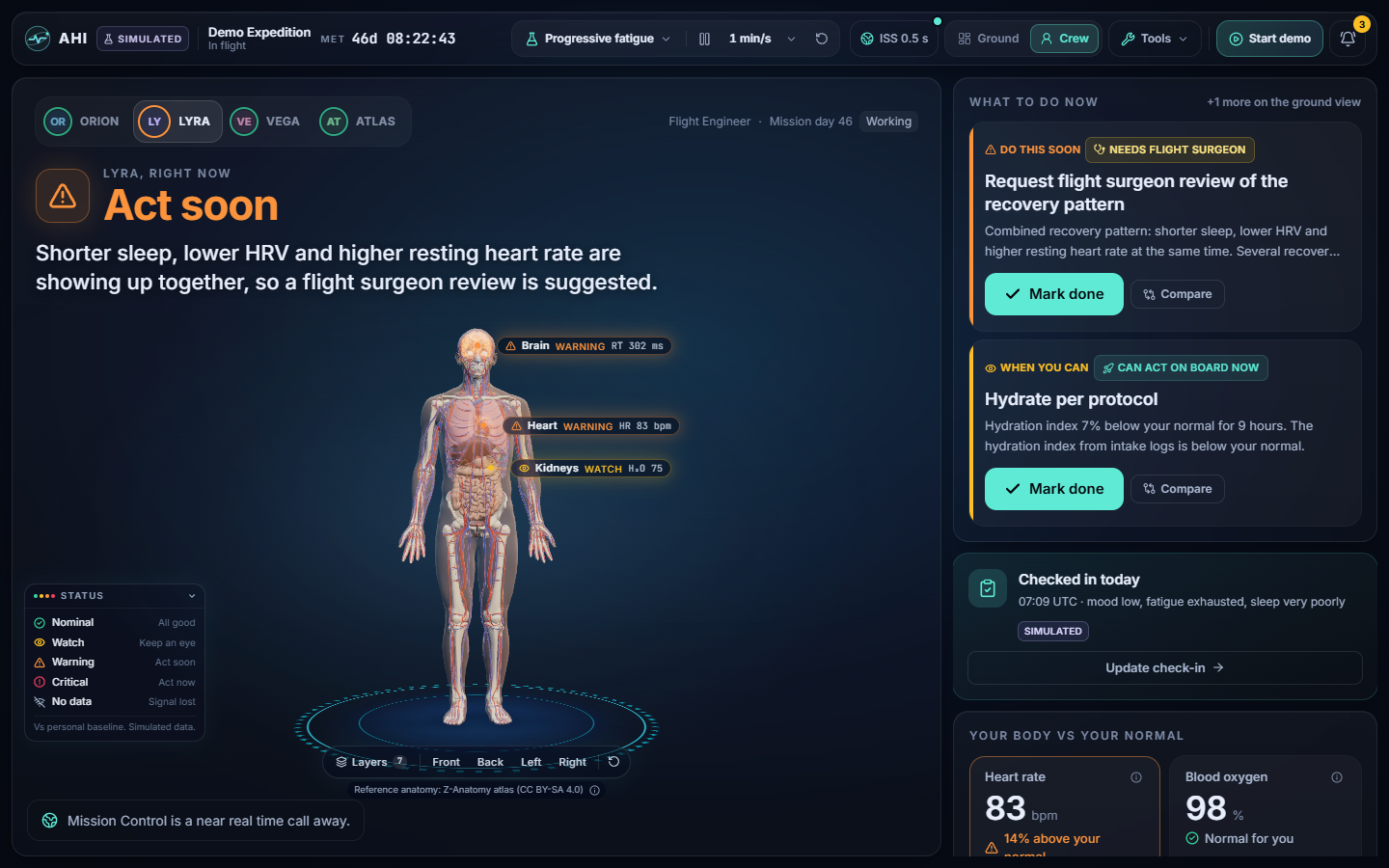
- The crew member opens the Crew view (toggle in the top bar or
V): a big status word ("All good", "Act soon"), one sentence, and "Your body vs your normal". - At most two actions are shown, each with an autonomy badge. With nothing to do the screen says "Nothing to do right now. Keep your usual routine."
- Start check-in opens the 30 second questionnaire. The answer becomes that day's check-in and is labeled
MANUAL.
Journey 2: flight surgeon, investigating a change
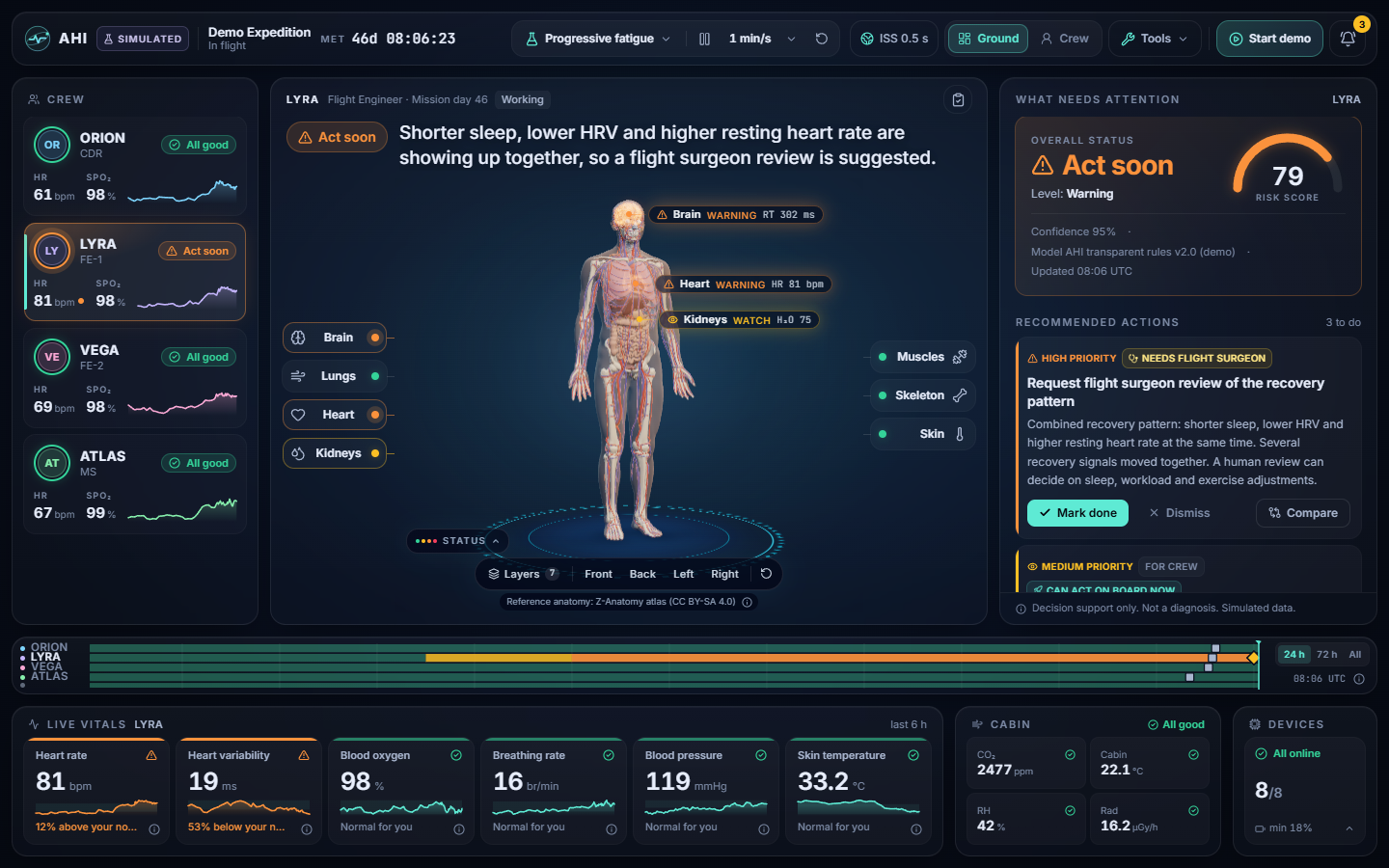
- In the Ground view, a crew card or the timeline shows a lane turning amber.
- Select the astronaut (click the card or press
1to4). What needs attention shows the status, score, confidence and contributing factors. - Click the Heart chip (or the highlighted organ in the 3D body). The detail panel lists each metric with "11% above your normal", the normal range and the robust z.
- Expand HRV: the trend chart shows the personal band, gaps where data is missing, the forecast cone and markers for alerts, actions and check-ins. Why is this my normal? shows the window, readings, median and MAD.
- Read the forecast: "Projected to leave your normal range in ~5 h" or "Not enough data to forecast yet".
Journey 3: acute event under Mars delay
- A CRITICAL banner appears; the alerts bell pulses. Recommended actions say why and who can act.
- Under Mars farthest, the app adds "Crew medical officer: start the onboard assessment protocol now" and states that the earliest Earth reply is about 48 min away.
- The crew marks the rest action done (logged in the audit trail) and acknowledges the alert, which stops escalation.
- A health packet travels to Earth; the simulated reply comes back after the review time plus the delay.
Journey 4: Mission Control, cabin and budgets
- The Cabin part of the vitals strip shows CO2, temperature, humidity and dose rate.
- During the cabin CO2 scenario, the recommendation "Ventilate the module and check the CO2 scrubber" is tagged Can act on board now; the breathing rate shift is reported as co-occurrence.
- Tools > Mission overview shows cumulative dose against the demo budget, exercise adherence and sleep per week.
Journey 5: shift handover
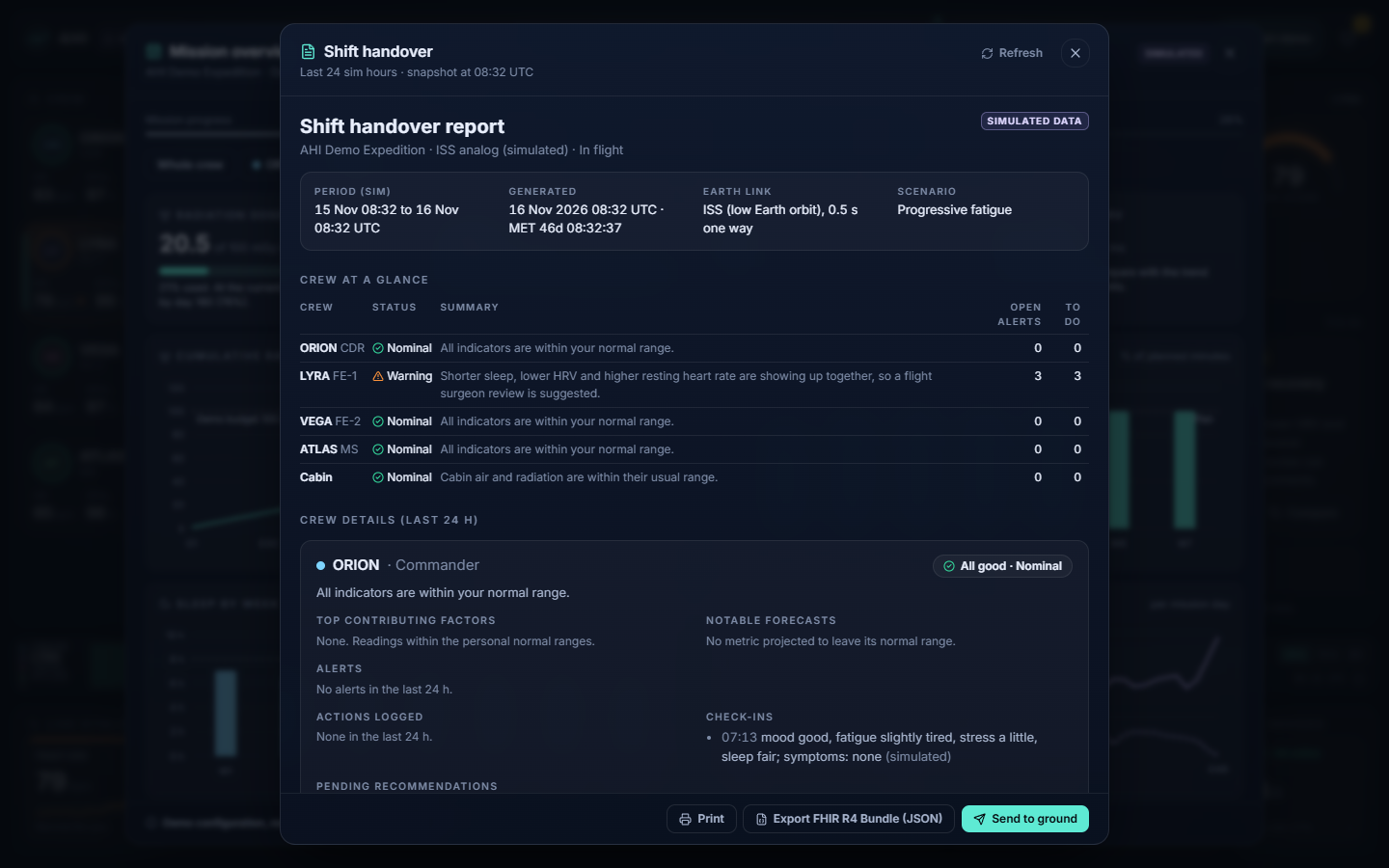
- Tools > Shift handover generates a report of the last 24 sim hours: crew at a glance, details, cabin, Earth link messages.
- Print, Export FHIR R4 Bundle (JSON) or Send to ground (queued on the Earth link with the delay).
Journey 6: researcher, real data with provenance
- Tools > Data and model > Real datasets: pick OSD-569 or OSD-575 and an analyte.
- See each subject across 7 time points, the lab range printed in the source, the
DERIVEDgroup mean, the assay protocol and the SHA-256 of the file. - Model card and Data origins tabs explain what the engine can and cannot do.
Journey 7: judge or newcomer, guided demo
Click Start demo: the 10 step tour sets up each scene by itself (acute event, Mars delay, fatigue drift, what-if, Crew view, tools). Details: Demo scenarios and guided demo.